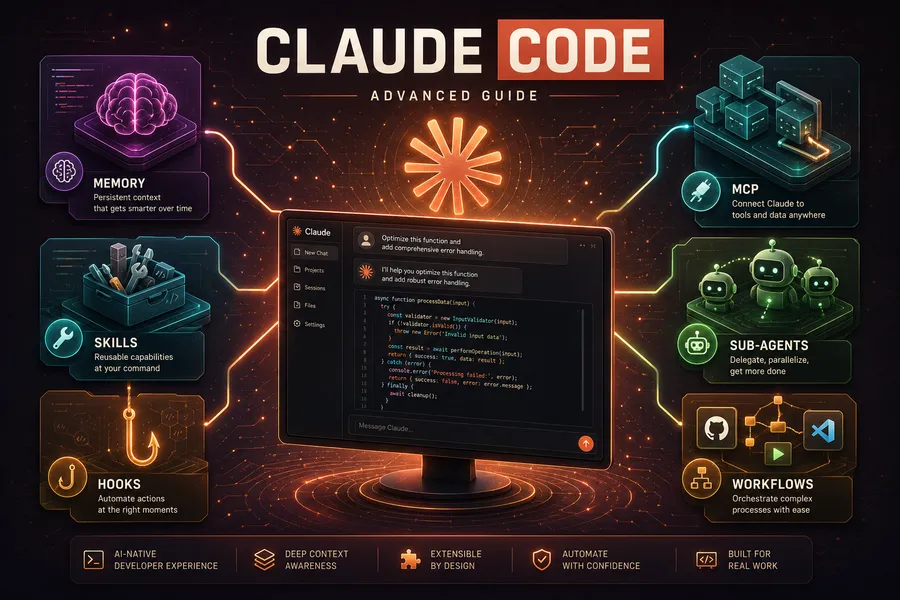
Getting More Out of Claude Code (1) — Memory, Skills, and Hooks
Introduction
Installing Claude Code and coding through basic conversation is quick to learn. But most users stop here — stuck at the “write this code,” “fix this bug” level.
Claude Code actually hides powerful features: project-specific memory, repeatable task automation, and external tool integration. Using them transforms Claude Code from a simple chatbot into your personalized coding partner.
This series covers how to get 200% out of Claude Code, across four parts:
- Part 1 — Memory + Skills + Hooks (this post): make Claude remember you and automate repetitive work
- Part 2 — Plugins + MCP + IDE integration: connect external tools and work inside your editor
- Part 3 — Sub-agents + Agent Teams: split complex tasks and process them in parallel
- Part 4 — Workflows + Ultrareview + Remote Agents: deterministic orchestration and cloud automation
Note: This post was checked against the latest Claude Code as of June 2026. Claude Code evolves fast, so for fast-growing lists like bundled skills or hook events, confirm with
/helpin your own environment.
TL;DR
- Memory has two axes. The
CLAUDE.mdyou write yourself (rules, guidance) and the auto-memory Claude writes during a session (learned habits, build commands). Both spare you from repeating the same explanations. - Skills teach new commands. A single markdown file (
SKILL.md) defines “do this task this way.” Many bundled skills also ship ready to use — well over a dozen, no install needed. - Hooks run commands at specific moments. Auto-format after edits, block dangerous commands, notify you when input is needed, verify task completion — all attached to events.
- Blocking and verification use defined signals. To block an action or keep Claude working, a hook returns an agreed exit code or JSON (
permissionDecision,decision). - Combine all three for a tailored partner. Put rules in memory, repetitive work in skills, automation in hooks, and Claude Code becomes optimized for your project.
1. Memory — Making Claude Remember You
Claude Code starts each session with a fresh context window. It doesn’t remember yesterday’s conversation today. Memory solves this.
1.1 CLAUDE.md — Your Project Instruction Manual
CLAUDE.md is a markdown file Claude reads automatically at session start. Write your coding rules, build commands, and architecture there, and you won’t have to re-explain them every time.
Scope depends on where you put it
You can place it in several locations; all of them load and merge. A narrower scope (project) takes precedence over a wider one (user).
| Location | Scope | Sharing |
|---|---|---|
Managed policy (/Library/Application Support/ClaudeCode/CLAUDE.md, etc.) | Org-wide, enforced | Admin-deployed |
./CLAUDE.md or ./.claude/CLAUDE.md | Whole project | Shared with team (Git) |
./CLAUDE.local.md | This project, just me | Gitignore recommended |
~/.claude/CLAUDE.md | All my projects | Just me |
.claude/rules/*.md | Specific file types | Shared with team |
Quick start: /init
If it’s your first time, run /init in Claude Code. It analyzes your codebase and generates a CLAUDE.md automatically. (/init is a built-in command, not a skill.)
# Inside Claude Code
/init
Writing a good CLAUDE.md
# Project Rules

## Build & Test
- `pnpm dev` to run the dev server
- `pnpm test` to run tests; always run before committing

## Coding Rules
- 2-space indentation
- Use TypeScript strict mode
- Place API handlers in `src/api/handlers/`

## Architecture
- Frontend: React + Vite
- Backend: Express + Prisma
- DB: PostgreSQL
Key points:
- Keep it under 200 lines. Longer files lower Claude’s compliance (the official guidance also targets “under 200 lines per file”).
- Be specific. “Write good code” → “2-space indentation.”
- Avoid contradictory rules. When two rules conflict, Claude picks arbitrarily.
Importing other files
When CLAUDE.md grows, reference external files with @path syntax (nesting up to 4 levels):
# Project Rules
@README.md
@docs/api-conventions.md

## Personal Settings
@~/.claude/my-preferences.md
Imported files are inlined into the context at session start. The first time you import a file outside your home directory, an approval dialog appears.
1.2 .claude/rules/ — File-Type Rules
Rules that don’t apply to every file belong in .claude/rules/. Use glob patterns in the paths frontmatter to apply them only to specific files:
---
paths:
  - "src/api/**/*.ts"
---

# API Development Rules
- Include input validation on every endpoint
- Use the standard error response format
- Include OpenAPI doc comments
Now this rule loads only when Claude works on TypeScript files under src/api/, saving context.
1.3 Auto-Memory — Claude Records on Its Own
Auto-memory is a system where Claude records things automatically without you doing anything. It learns and saves build commands, debugging tips, code-style preferences, etc. during a session.
Storage location
~/.claude/projects/<project>/memory/
├── MEMORY.md          # Index (loaded at every session start)
├── debugging.md       # Debugging patterns
├── api-conventions.md # API design decisions
└── ...
The MEMORY.md index loads at session start, up to whichever comes first of 200 lines / 25KB. The remaining files are referenced as needed.
Enable/disable
# Inside Claude Code
/memory  # Toggle auto-memory + show loaded memory/rules files
// settings.json
{
"autoMemoryEnabled": false
}You can also disable it with the CLAUDE_CODE_DISABLE_AUTO_MEMORY=1 environment variable, or change the storage path with the autoMemoryDirectory key.
Telling it to remember
Say “remember this” to Claude and it saves to auto-memory:
Always use pnpm, not npm. Remember this.The /memory command lets you review and edit what’s stored. They’re plain markdown files, so you can edit them directly.
1.4 CLAUDE.md vs Auto-Memory — When to Use Which
| CLAUDE.md | Auto-Memory | |
|---|---|---|
| Who writes it | You, directly | Claude, automatically |
| Content | Rules, guidance | Learned patterns |
| Scope | Project/user/org | Per project |
| Use for | Coding standards, workflow | Build commands, debugging tips, preferences |
Summary: Put rules you share with the team in
CLAUDE.md; use auto-memory to let Claude learn your habits.
2. Skills — Giving Claude New Abilities
A skill teaches Claude how to perform a specific task. A single SKILL.md file teaches Claude a new command.
2.1 Bundled Skills — Ready Without Installing
Claude Code ships with several built-in skills. Type a name after / and use them immediately, no install. The count grows with each version, so check your full list with /help. The major bundled skills as of June 2026, by purpose:
| Category | Skills | Purpose |
|---|---|---|
| Code quality | /code-review, /simplify, /review | Review/simplify changes, review a PR |
| Security & verification | /security-review, /verify | Vulnerability scan, verify a change actually works |
| Large-scale work | /batch | Parallel changes across the codebase |
| Run & debug | /run, /debug | Run/check the app, analyze session debug logs |
| Automation | /loop, /schedule | Repeated execution, scheduled/remote agents |
| Analysis & config | /insights, /statusline, /claude-api | Session analysis, status line, load API reference |
A few worth highlighting:
/batch— handles large-scale codebase changes in parallel. It decomposes the work into independent units; once you approve, a separate agent per unit implements, tests, and opens a PR in an isolated git worktree. E.g./batch replace all console.log with a structured logger./code-review— reviews the current diff for bugs and cleanups. You can setlow–maxeffort, and/code-review ultrascales it to a cloud multi-agent review (see Part 4)./loop— runs a prompt or slash command on a fixed interval. E.g./loop 5m check the deploy status./claude-api— loads the Claude API/SDK reference for your project’s language. It can auto-activate when you importanthropicin code.
Note: If you remember “there are 5 bundled skills,” that’s stale. With
/code-review,/security-review,/run,/verify,/simplifyand more added, there are now well over a dozen.
2.2 Creating Custom Skills
Beyond bundled skills, you can make your own. One SKILL.md file is enough.
Skill storage locations
| Location | Scope |
|---|---|
~/.claude/skills/<name>/SKILL.md | All my projects |
.claude/skills/<name>/SKILL.md | This project only |
Example: blog post generation skill
---
name: blog-post
description: Generates a blog post draft. Creates Korean and English versions at once.
disable-model-invocation: true
---

Write a blog post:

1. Write a post about the $ARGUMENTS topic
2. Create the Korean version in `src/content/blog/`
3. Create the English version in `src/content/blog/en/`
4. Include the current time in pubDate (e.g. 2026-03-14T18:00:00+09:00)
5. Korean uses casual style; English uses a practical tone
6. heroImage path: Korean `../../assets/`, English `../../../assets/`
Usage:
/blog-post How to write Terraform modulesFrontmatter fields
Only name and description are required. Many fields have been added for fine-grained control:
| Field | Role |
|---|---|
name / description | Name and description (required). The description drives auto-invocation |
disable-model-invocation: true | User-invocable only, no auto-invocation (deploy/commit side effects) |
user-invocable: false | Auto-reference by Claude only, no direct user call (background knowledge) |
allowed-tools / disallowed-tools | Tools allowed/removed while the skill is active |
model | haiku / sonnet / opus / inherit |
effort | low to max reasoning effort |
context: fork | Run in a separate sub-agent (avoid polluting the main conversation) |
agent | Sub-agent type when context: fork |
when_to_use / argument-hint | Extra auto-invocation triggers / autocomplete hint |
Controlling skill invocation
| Setting | User call | Claude auto-call |
|---|---|---|
| (default) | O | O |
disable-model-invocation: true | O | X |
user-invocable: false | X | O |
disable-model-invocation: true: for side-effecting work like deploy or commit. You don’t want Claude auto-running “looks ready, I’ll deploy.”user-invocable: false: for background knowledge like legacy-system context. You’d never call/legacy-contextyourself, but it’s useful for Claude to auto-reference it.
2.3 Dynamic Context Injection
The !`command` syntax injects shell command output before the skill runs:
---
name: pr-summary
description: Summarize a PR
context: fork
agent: Explore
---

## PR Context
- PR diff: !`gh pr diff`
- PR comments: !`gh pr view --comments`
- Changed files: !`gh pr diff --name-only`

## Task
Summarize this PR...
How it works:
- Run
/pr-summary - Shell commands like
!`gh pr diff`run first - Each command’s output is substituted in place as text
- The fully substituted content is sent to Claude
!`command` behaves like a template variable. You can’t embed data directly in the skill file, so it means “insert this command’s result here at runtime.”
Frontmatter explained:
| Field | Role |
|---|---|
context: fork | Run this skill in a separate sub-agent (prevents polluting the main conversation) |
agent: Explore | Set the forked sub-agent’s type to Explore (read-only) |
Without context: fork, it runs directly in the main conversation. For potentially long output like a PR diff, forking isolates it and saves the main conversation’s context.
What’s an agent type? Claude Code has specialized built-in agent types.
Exploreis read-only codebase exploration,Planis for planning, andgeneral-purposeis general (all tools). You can also build custom agents. Part 3 covers this in detail.
3. Hooks — Workflow Automation
A hook is a command that runs automatically at a specific moment in Claude Code. If a skill “teaches Claude how,” a hook “auto-runs code on a specific event.”
3.1 What’s a hook
Hooks can step in at several moments during a session. The common spots:
flowchart TB
    start["SessionStart<br/>start/resume/compact"]
    prompt["UserPromptSubmit<br/>prompt submitted"]
    pre["PreToolUse<br/>before a tool runs — can block"]
    post["PostToolUse<br/>after a tool runs — format/log"]
    stop["Stop<br/>response done — verify completion"]
    end_["SessionEnd<br/>session ends — cleanup"]

    start --> prompt --> pre --> post
    post -->|more tool calls| pre
post --> stop --> end_- After editing a file → run Prettier automatically (PostToolUse)
- Before a dangerous command → block it (PreToolUse)
- When Claude waits for input → desktop notification (Notification)
- At session start → load environment variables (SessionStart)
3.2 Your first hook
Get a desktop notification when Claude waits for input. Add to ~/.claude/settings.json:
{
  "hooks": {
    "Notification": [
      {
        "matcher": "",
        "hooks": [
          {
            "type": "command",
            "command": "osascript -e 'display notification \"Claude Code needs your attention\" with title \"Claude Code\"'"
          }
        ]
      }
    ]
  }
}
On Linux, use
notify-send 'Claude Code' 'Claude Code needs your attention'.
Type /hooks to see registered hooks.
3.3 Practical hook recipes
Auto-format after edits
.claude/settings.json (project level):
{
  "hooks": {
    "PostToolUse": [
      {
        "matcher": "Edit|Write",
        "hooks": [
          {
            "type": "command",
            "command": "jq -r '.tool_input.file_path' | xargs npx prettier --write"
          }
        ]
      }
    ]
  }
}
Prettier runs only after the Edit or Write tool. It ignores other tools like Bash or Read.
Block edits to protected files
This hook blocks edits to sensitive files like .env, package-lock.json, .git/. The PreToolUse hook blocks the tool call with exit code 2, and the stderr message is shown to Claude.
.claude/hooks/protect-files.sh:
#!/bin/bash
INPUT=$(cat)
FILE_PATH=$(echo "$INPUT" | jq -r '.tool_input.file_path // empty')

PROTECTED_PATTERNS=(".env" "package-lock.json" ".git/")

for pattern in "${PROTECTED_PATTERNS[@]}"; do
  if [[ "$FILE_PATH" == *"$pattern"* ]]; then
    echo "Blocked: $FILE_PATH matches protected pattern '$pattern'" >&2
    exit 2  # exit 2 = block the tool call; stderr is shown to Claude
  fi
done

exit 0
chmod +x .claude/hooks/protect-files.sh.claude/settings.json:
{
  "hooks": {
    "PreToolUse": [
      {
        "matcher": "Edit|Write",
        "hooks": [
          {
            "type": "command",
            "command": "\"$CLAUDE_PROJECT_DIR\"/.claude/hooks/protect-files.sh"
          }
        ]
      }
    ]
  }
}Note: Instead of exit code 2, you can exit 0 and print the JSON below for the same block. Useful for delivering a structured reason.
{
  "hookSpecificOutput": {
    "hookEventName": "PreToolUse",
    "permissionDecision": "deny",
    "permissionDecisionReason": "Protected files cannot be modified"
  }
}
Inject a reminder after compaction
After a long conversation, compaction (/compact) can drop important info. Auto-inject a reminder afterward:
{
  "hooks": {
    "SessionStart": [
      {
        "matcher": "compact",
        "hooks": [
          {
            "type": "command",
            "command": "echo 'Reminder: use pnpm, not npm. Run pnpm test before committing. Current sprint: auth refactor.'"
          }
        ]
      }
    ]
  }
}
Log Bash commands
Log every Bash command Claude runs to a file:
{
  "hooks": {
    "PostToolUse": [
      {
        "matcher": "Bash",
        "hooks": [
          {
            "type": "command",
            "command": "jq -r '.tool_input.command' >> ~/.claude/command-log.txt"
          }
        ]
      }
    ]
  }
}
3.4 Prompt-based hooks — hooks that the AI judges
Beyond rule-based (exit code) hooks, there are hooks the AI judges. When Claude says it’s done but you want to confirm, use a type: prompt hook:
{
  "hooks": {
    "Stop": [
      {
        "hooks": [
          {
            "type": "prompt",
            "prompt": "Check whether all requested work is complete. If not, block so the work continues."
          }
        ]
      }
    ]
  }
}
If the Stop hook judges “not done yet,” it returns the JSON below to keep Claude working instead of stopping:
{
  "decision": "block",
  "reason": "Tests aren't passing yet. Fix the failing tests first."
}
Caution — common misconception: The
{"ok": false, "reason": "..."}format seen in older material is not a hook return format. Hook block/continue signals usedecision/reason(Stop/PostToolUse family) andhookSpecificOutput.permissionDecision(PreToolUse).
3.5 Hook events — where you can attach
Hook events keep growing with each version; there are now over 30. Use /hooks to see the full list your version supports. The most-used ones, categorized:
Session events
| Event | When | Use for |
|---|---|---|
SessionStart | Session start, resume, compact, clear | Load env vars, inject context |
SessionEnd | Session ends | Cleanup, release resources |
PreCompact / PostCompact | Just before/after context compaction | Back up key info, inject reminders |
Input & tool events
| Event | When | Use for |
|---|---|---|
UserPromptSubmit | User submits a prompt | Input validation, add context |
PreToolUse | Just before a tool runs | Block dangerous commands, protect files |
PostToolUse | Just after a tool runs | Auto-format, logging, lint |
Response, sub-agent & team events
| Event | When | Use for |
|---|---|---|
Notification | Claude sends a notification | Desktop notification |
Stop | Claude finishes responding | Verify completion, catch missing work |
SubagentStart / SubagentStop | Sub-agent start/finish | Prep environment, log results |
TeammateIdle / TaskCreated / TaskCompleted | Agent team events | Deliver feedback, quality gates |
Elicitation | An MCP server requests user input | Auto-respond |
3.6 Hook types — what runs
Hooks don’t only run shell commands. There are now five types:
| Type | Action |
|---|---|
command | Run a shell command (most common) |
prompt | The AI judges (§3.4) |
agent | Spawn a sub-agent |
http | POST to an HTTP endpoint |
mcp_tool | Call a tool on an MCP server |
3.7 Hook settings locations
| Location | Scope |
|---|---|
Managed policy (/Library/Application Support/ClaudeCode/, etc.) | Org-wide, enforced |
~/.claude/settings.json | All my projects |
.claude/settings.json | This project (team shared) |
.claude/settings.local.json | This project (just me) |
Plugin hooks/hooks.json, skill/agent frontmatter hooks: | When that plugin/skill is active |
Recap
A summary of the three features covered here:
| Feature | Core | Typical use |
|---|---|---|
| CLAUDE.md | Rules you write (auto-loaded each session) | Build commands, coding standards, architecture |
| Auto-memory | What Claude learns and records | Debugging tips, tool preferences |
| Skills | Teach new commands (SKILL.md) | Repetitive work, bundled skills |
| Hooks | Auto-run commands on events | Format, block, notify, verify completion |
Memory, skills, and hooks are each powerful, but combined they show real force:
- Define project rules in CLAUDE.md
- Automate repetitive work (deploy, blogging, code review) with custom skills
- Set up file protection, auto-formatting, and notifications with hooks
Then Claude Code becomes not a simple AI chat but a development partner tailored to your project.
Part 2 covers plugins, MCP, and IDE integration. Install useful plugins from the marketplace, connect external services via MCP, and use Claude Code directly in VS Code and JetBrains.
Appendix
A. Glossary
| Term | Description |
|---|---|
| CLAUDE.md | Project guide file auto-loaded at session start |
| Auto-memory | System where Claude records what it learns during a session |
| Skill | A task procedure you teach Claude via SKILL.md |
| Bundled skill | A skill shipped with Claude Code, usable without install |
| Hook | A command/judgment auto-run at a specific event |
| matcher | Pattern filtering which tools/situations a hook reacts to (e.g. `Edit |
| context: fork | Setting that runs a skill in a separate sub-agent to protect the main conversation |
B. Command & config cheat sheet
# Memory
/init           # Auto-generate CLAUDE.md (built-in command)
/memory         # Toggle auto-memory + show loaded memory/rules

# Skills (bundled — grows per version, check with /help)
/code-review    # Review changes  (/code-review ultra = cloud multi-agent)
/security-review
/simplify /review /verify /run /debug /batch
/loop 5m <cmd>  # Repeated execution
/schedule       # Scheduled/remote agents
/claude-api     # Load API reference

# Hooks
/hooks          # Show registered hooks
// settings.json hook skeleton
{
"hooks": {
"<event>": [
{ "matcher": "<pattern>", "hooks": [ { "type": "command|prompt|agent|http|mcp_tool", "command": "..." } ] }
]
}
}